
Multi-Factor Authentication (MFA) adds an extra layer of protection on top of your password. Once enabled, signing in to Hello Customer requires both your password and a one-time code from your authenticator app, so an exposed password alone is no longer enough to access an account.
IN THIS ARTICLE
1. How MFA works
When MFA is enabled for an account, signing in becomes a two-step process:
-
Enter your e-mail address and password as usual.
-
Enter a 6-digit code from your authenticator app (for example Google Authenticator, Microsoft Authenticator, 1Password, Authy, or any TOTP-compatible app). MFA in Hello Customer is built around the standard TOTP protocol, so it works with any authenticator app that you already use elsewhere.
2. Enable MFA (admins)
Administrators can activate MFA for their environment from account settings. You can open account settings by clicking your own name in the upper right corner.
There are several options:
- Don't require MFA
MFA is not enforced for any users. All users can login using their email address and password. - Require MFA for admins
MFA is enforced for admin users only. Regular users will still be able to login using their email address and password, while admins will need to do the 2-step process. - Require MFA for all users
MFA is enforced for every user in the environment. All users will need to do the 2-step process to login. - Require MFA for individual users
MFA is enforced per user and controlled via the MFA toggle on the create/edit user screen.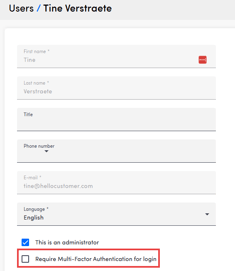
In the user overview, you're able to see for which users MFA is enabled.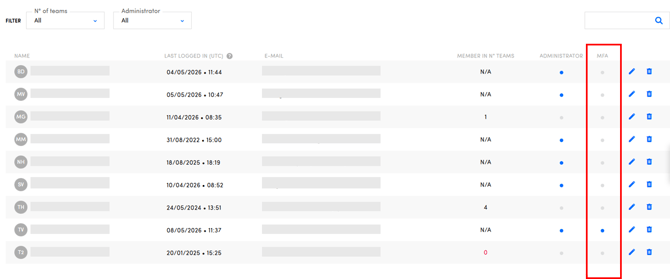
WARNING
TIP
Communicate the change to your users in advance and share this article with them so they know what to expect.
3. Login with MFA
The first time you login after MFA has been enabled:
-
Sign in with your e-mail and password.
-
Scan the QR code with your authenticator app
-
Enter the 6-digit code shown in your app to confirm.
-
A recovery code is shown on the screen. Save this code somewhere safe (a password manager works well). IMPORTANT: You will need it if you ever lose access to your phone.
That's it — your account is now protected with MFA.
Afterwards, signing in takes one extra step:
-
Enter your e-mail and password.
-
Open your authenticator app, copy the current 6-digit code for Hello Customer, and paste it on the verification screen.
4. Frequently asked questions
Which authenticator apps are supported?
Any TOTP-compatible app, including Google Authenticator, Microsoft Authenticator, 1Password, Authy, Bitwarden, and Duo (in TOTP mode).
Can I use SMS instead of an authenticator app?
No. We only support authenticator apps because SMS is significantly less secure.
What happens to SSO users?
If you sign in via SSO, MFA is enforced by your identity provider. Hello Customer doesn't add a second MFA step on top.
What if I lost my phone?
Use the recovery code you received when you set up MFA for your account. If you no longer have this code, contact support@hellocustomer.com.