
Summary
If you find yourself facing hundreds of duplicate answers and deleting them manually one by one is not efficient, this article explains how to use the delete: answers API call to bulk-delete duplicates. We also show a method to extract the list of duplicate IDs from an export (e.g., Excel), so you only remove the redundant entries once.
IN THIS ARTICLE
-
Pre‑requisites
-
Context
-
Step‑by-step: find duplicate answers and get their IDs
-
Step‑by-step: bulk delete using the API
-
Post‑deletion check
1. Pre‑requisites
Before you begin:
-
You have a spreadsheet tool (Excel, Google Sheets, LibreOffice Calc, etc.) or similar means to filter and process the export.
-
You have technical knowledge or know how to do API calls.
-
You know which metadata uniquely identify an answer (for example, a metadata containing unique ids), or any other unique identifier in your conversations.
2. Context
Duplicate answers may appear when:
-
A process or script accidentally inserts the same response multiple times.
-
A user resubmits the same data, causing duplicates.
-
Bulk imports or automated tasks failed to detect uniqueness, resulting in duplicates.
Manually deleting duplicates one-by-one is tedious and error-prone. Bulk removal ensures consistency and saves time, especially when dealing with large volumes.
3 Step-by-step: find duplicate answers and get their IDs
These steps show how to identify duplicates and compile a list of unique IDs for deletion.
-
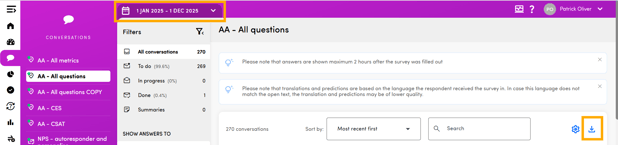
Filter the answers for the relevant period (e.g., month of August) on the Conversations section of the platform and export them
-
Open the export on a spreadsheet tool (in this article we use Excel).
-
In the spreadsheet, add a new column. Call it for instance duplicates.
-
Use a formula to count duplicate entries based on the unique identifier. For example, if your unique identifier is in column V:
=COUNTIF($v:$v, v2)
-
This counts how many times the identifier in V2 appears in column V (paste the formula on V2 and extend the formula to the last row with data).
-
Use the spreadsheet’s filter function to show only rows where duplicates ≥ 2. These represent duplicates (or more than one occurrence).
-
Use your spreadsheet tool’s “Remove Duplicates” or “Unique” function (on the identifier column) to reduce the list to one entry per duplicated group preventing double deletion (keeping 1 of the duplicates).
-
Now you have a list of conversation IDs that can can be used with the API call.
4 Step-by-step: bulk delete using the API
Once you have the list of IDs:
-
Prepare the payload for the delete: answers API call. The payload should include the list of IDs you want to delete.
-
Send the API request.
-
Verify the API response to ensure all specified duplicates have been removed successfully.
Note: Always make sure you have a backup or that the data is exportable before bulk deletion. Once removed via API, recovery is impossible
...back to top
5 Post-deletion check
After deletion:
-
Export the answers dataset again for the same period.
-
Compare with the previous export — ensure the count of answers matches expectations (duplicates removed, no unintended deletions).
-
Spot-check a few conversation IDs (or unique identifiers) manually to ensure no unique answer was accidentally removed.