
A Website touchpoint can be integrated into a HTML page in five different ways:
- Embedded in the same page. In this case, the touchpoint is made visible through an Iframe.
- As a pop-up on the same screen
- The survey opens in a new tab
- The survey opens in a new window
- As a feedback button on the same screen which needs to be clicked before the survey is triggered.
IN THIS ARTICLE
1. Where can I find the website integration code
This may be the part where it gets a little bit more technical. To integrate your touchpoint on your website, you need the integration code, which can be found in the "Website integration".
- In touchpoint settings, select the touchpoint you would like to integrate in your website.
- In your touchpoint settings, hit the button 'get the Code'.
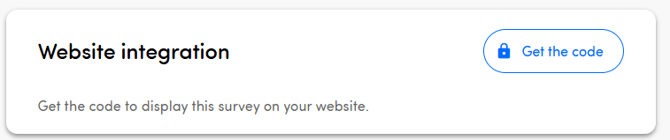 You will now be redirected to the page where the code will be generated according to the type of website touchpoint you made earlier in the survey template. If your touchpoint is online, you will need to put it offline first and then you will be redirected to the editing page where the integration code can be copied.
 - You will now be able to add the code into the head of a page of your website.
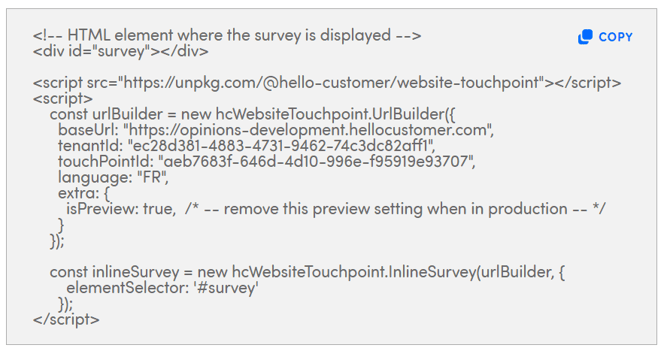 You can do this by adding the following "<div id="survey"></div>" between the <body> and </body> tags. If you are not sure how to do this, please ask advice to someone with technical IT skills and knows how your website has been built. You can also add it via Google Tag Manager or a similar tool!
IMPORTANT
Some changes to the settings of your website touchpoint, trigger an update of the integration code. You get a warning in the platform every time this happens. Be aware that in these cases, the code snippet needs to be re-added to your website code to reflect your changes.
2. Parameters
In addition, there are also a number of parameters available in the code snippet (the grey box with java script and html code).
baseUrl, tenandId and touchpointId
These parameters are set automatically and should never be changed by the user.
Language
This will be the default language for the survey.
NOTE
This will automatically be adjusted to the language which is set in the browser if the survey is available in this language. You can add languages in the general settings of your touchpoint.
Is preview
This parameter must be removed by the customer when the survey goes into production. When changing the type of website touchpoint, changes will also be made in the code snippet. This will therefore have to be copied again to ensure that the survey is displayed properly.
Metadata
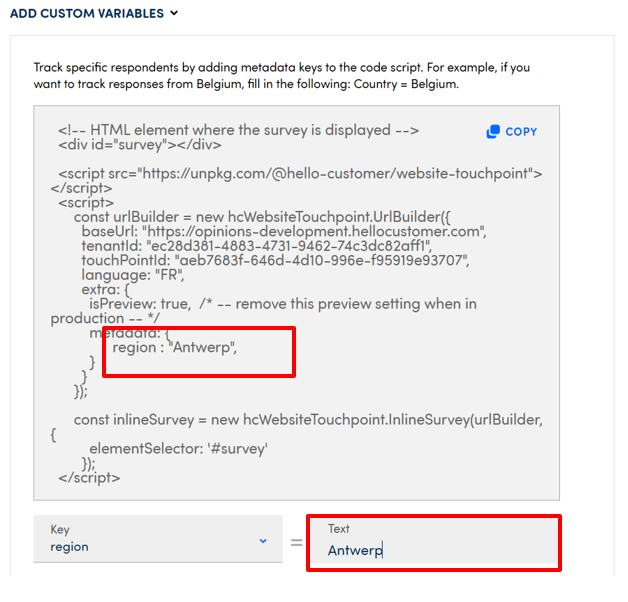
There is a switch available at the bottom of the "website integrations" which will enable the user to add specific metadata in the code snippet. If enabled, you can add static metadata to the code. This is just a tool and dynamic metadata values need to be added by means of the Data Layer.
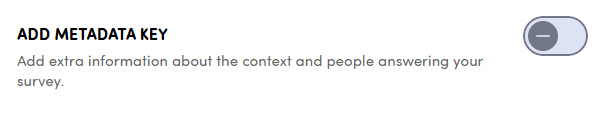
NOTE
Before you do this, be sure to check if there are already metadata keys available in the Metadata key section. You can find this section when navigating to Touchpoint Settings.
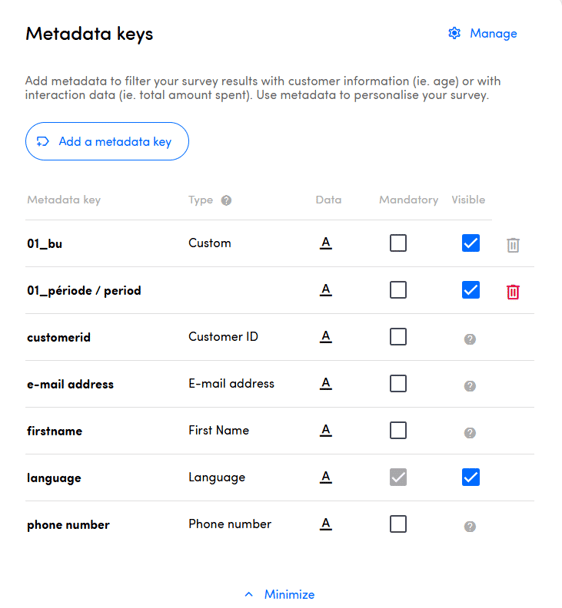
Once you have done this, you can start adding keys in your code snippet. The variables can become dynamic if the values are enclosed by double curly-braces (key: ). The values can the be pushed to the code using the data collected on the Data Layer.
Participant data
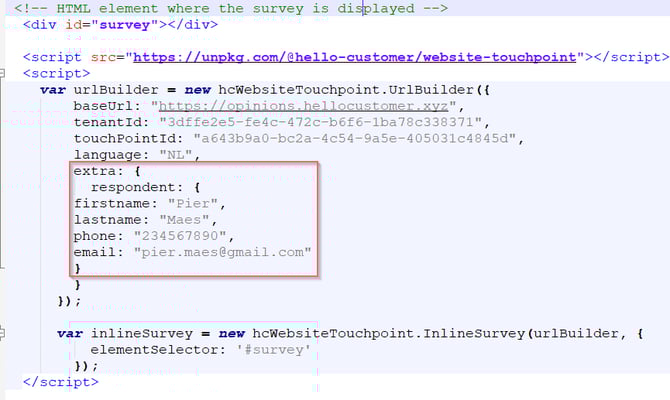
You can also add personal data about the person who responded to your survey in the code snippet. You can add following information:
- First name
- Last name
- Email address
- Phone number
In the code snippet, it will look like this:
Quarantine
A quarantine period can be configured in the general touchpoint settings. This period will be reflected in the code snippet.
3. Github
For developer information on how to install and configure your survey to the fullest, please read our Github documentation: https://github.com/hellocustomer/HC.WebsiteSDK