
Managing a large team structure no longer means clicking through endless menus. With the Excel round-trip workflow, you can export your entire team hierarchy, make bulk changes in a familiar spreadsheet environment, and upload everything back in one go.
IN THIS ARTICLE
1. What can you manage via the Excel round-trip?
1. What is the Excel round-trip?
The Excel round-trip is a bulk management workflow that lets you download your full team structure as an editable .xlsx file, make changes offline, and re-upload the file to apply all updates at once.
It is designed for situations where you need to make many changes at the same time; such as a team reorganization, onboarding a large group of users, or adjusting permissions across multiple team; and doing so one by one in the UI would be too time-consuming.
2. What you can manage via the Excel round-trip
Not only your team structure, users, and permissions can be updated via an Excel upload. Dashboard permissions can also be updated in bulk this way too, on top of managing them directly in the platform.
The round-trip works the same way for every scope:
- Export the current state as an Excel file.
- Edit in place: rename, add, remove, reorganize, adjust permissions.
- Upload the file back. A preview shows exactly what will change, and updates are all-or-nothing, so your data stays consistent.
The exported file contains your full team hierarchy
- Team names and aliases
- Sub-team structure (parent–child relationships)
- User assignments
-
Team permissions (including dashboard permissions)
What can you manage in the file
- Add new teams or sub-teams
- Rename existing teams
- Reorganize the hierarchy (e.g. move a sub-team under a different parent)
- Update user assignments (add or remove members)
- Adjust permissions for any team (including dashboard permissions)
IMPORTANT
You cannot use this file to create new users. Users must already exist in the platform before they can be assigned to teams via the Excel upload.
3. How to use it
a. Export your team hierarchy
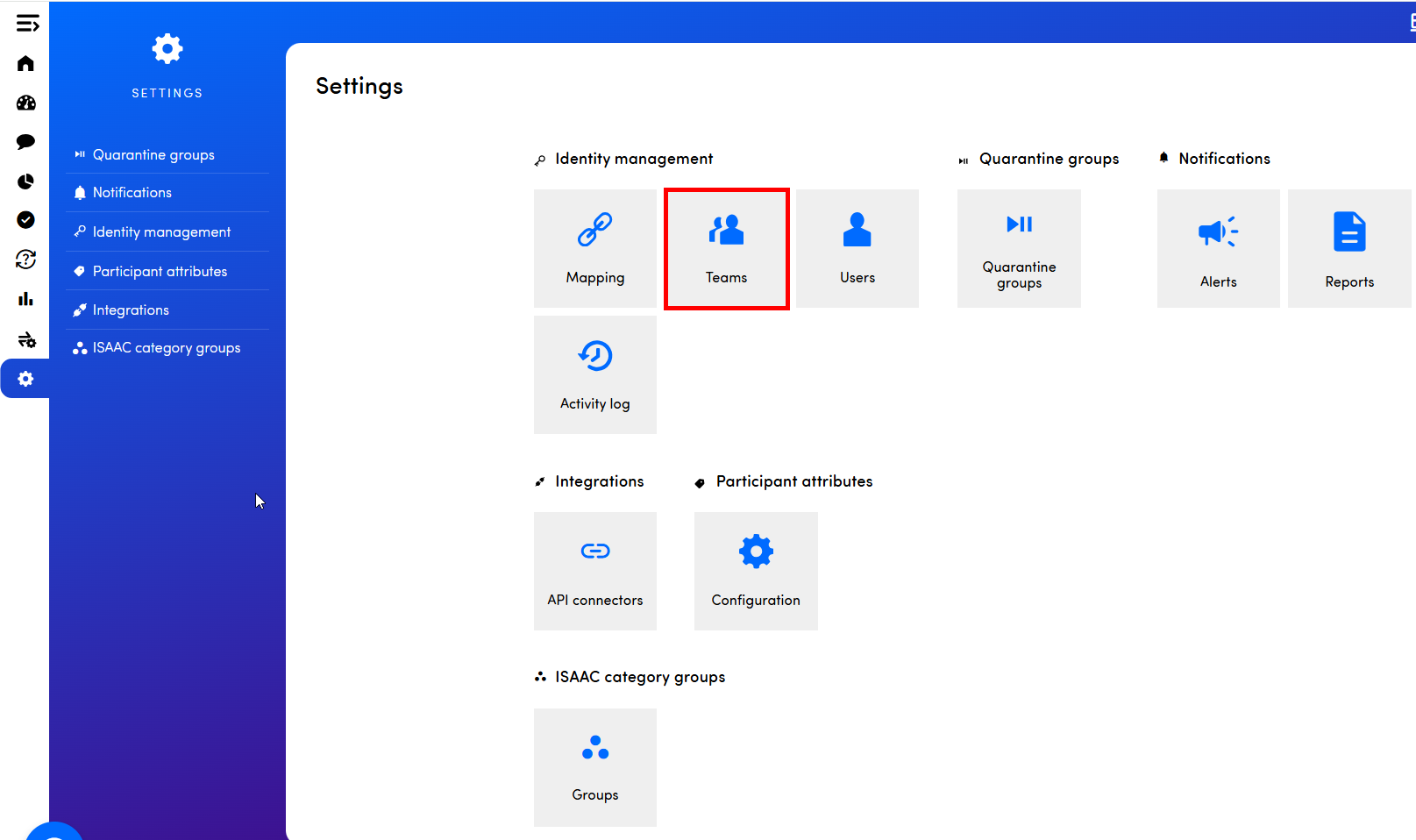
Go to the team overview page from the left navigation menu.
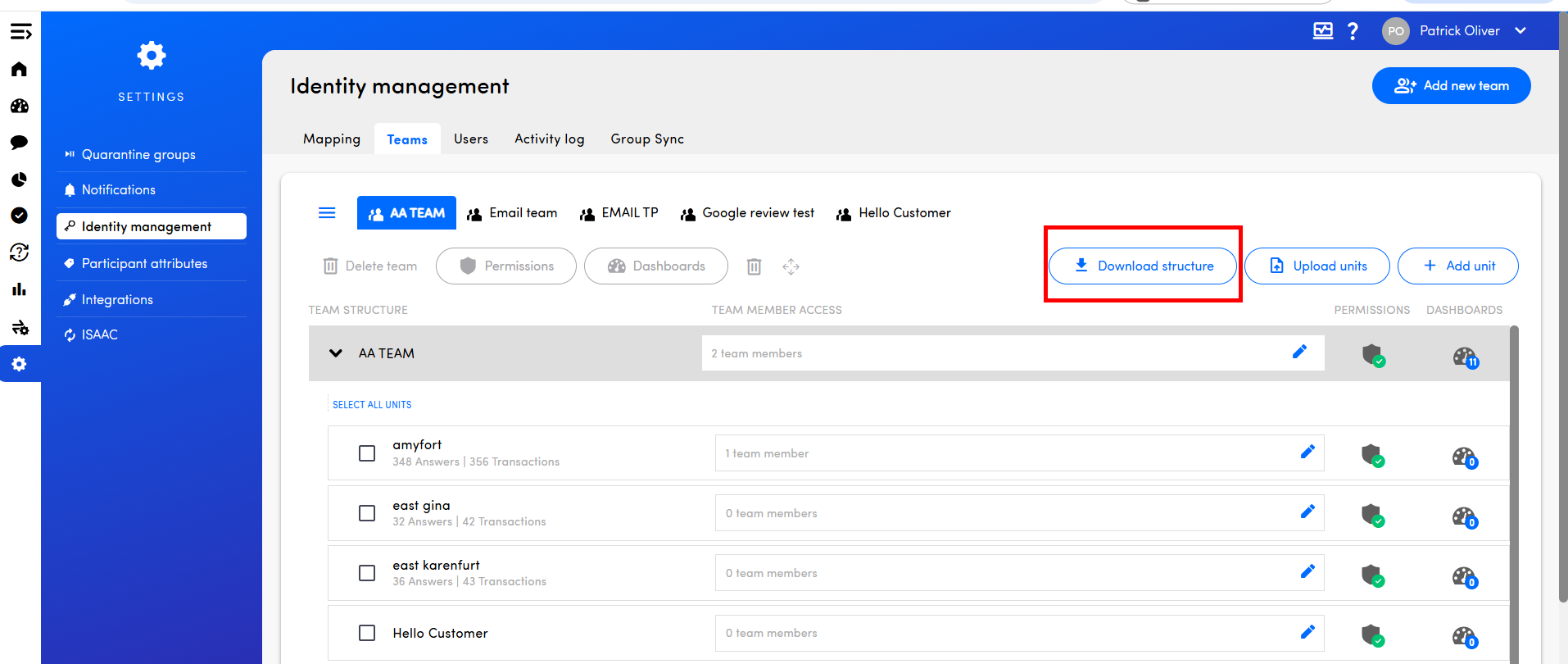
Click Export teams to download the current structure as an .xlsx file.
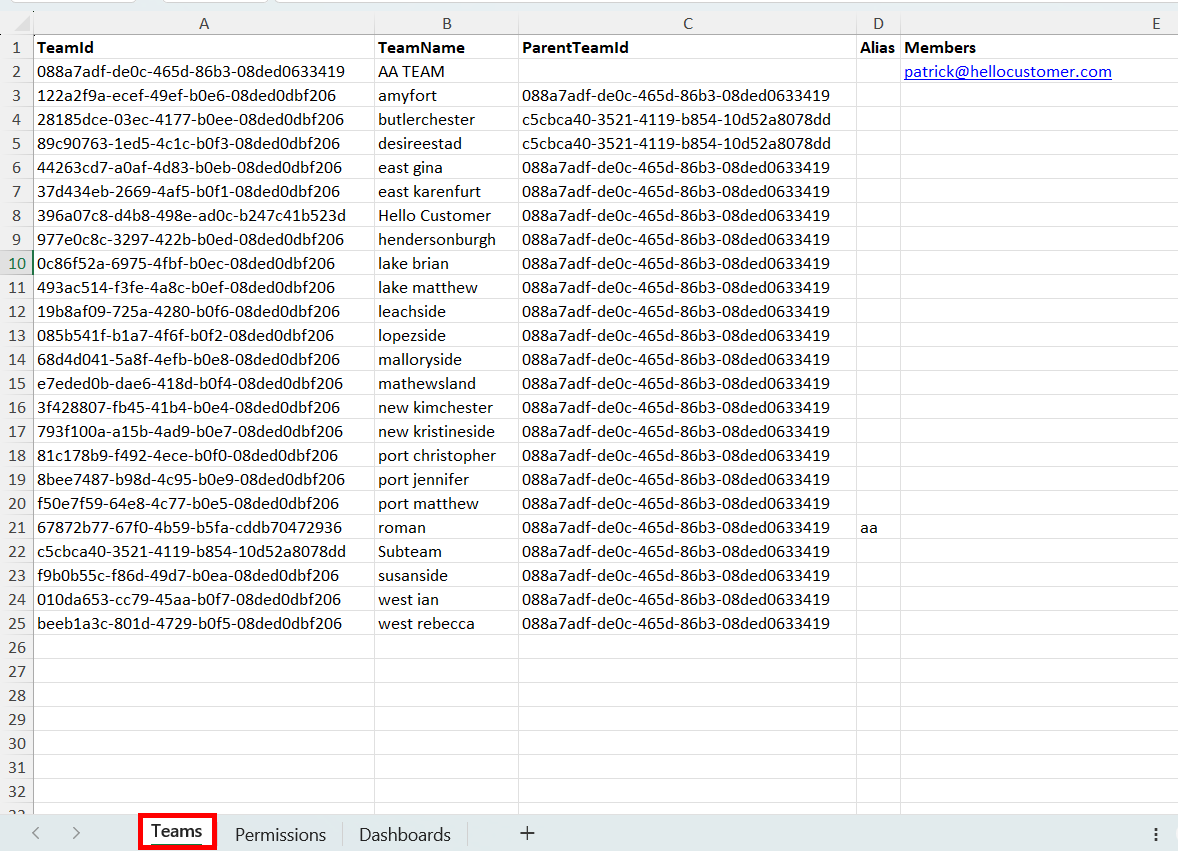
In one tab, the file will contain one row per team, with columns for team name, alias, parent team and users.
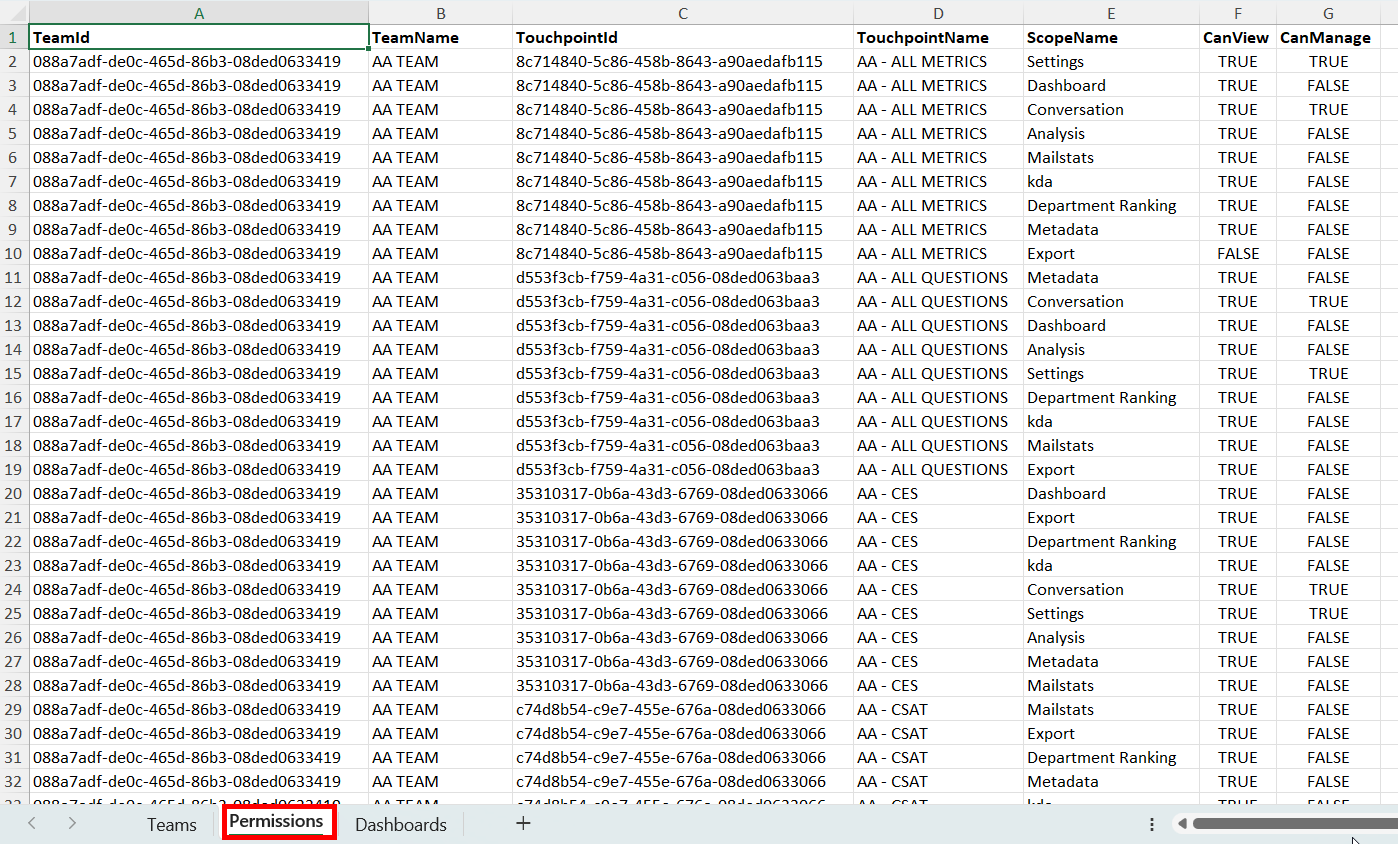
In the second tab the file will contain the permissions added to each team.
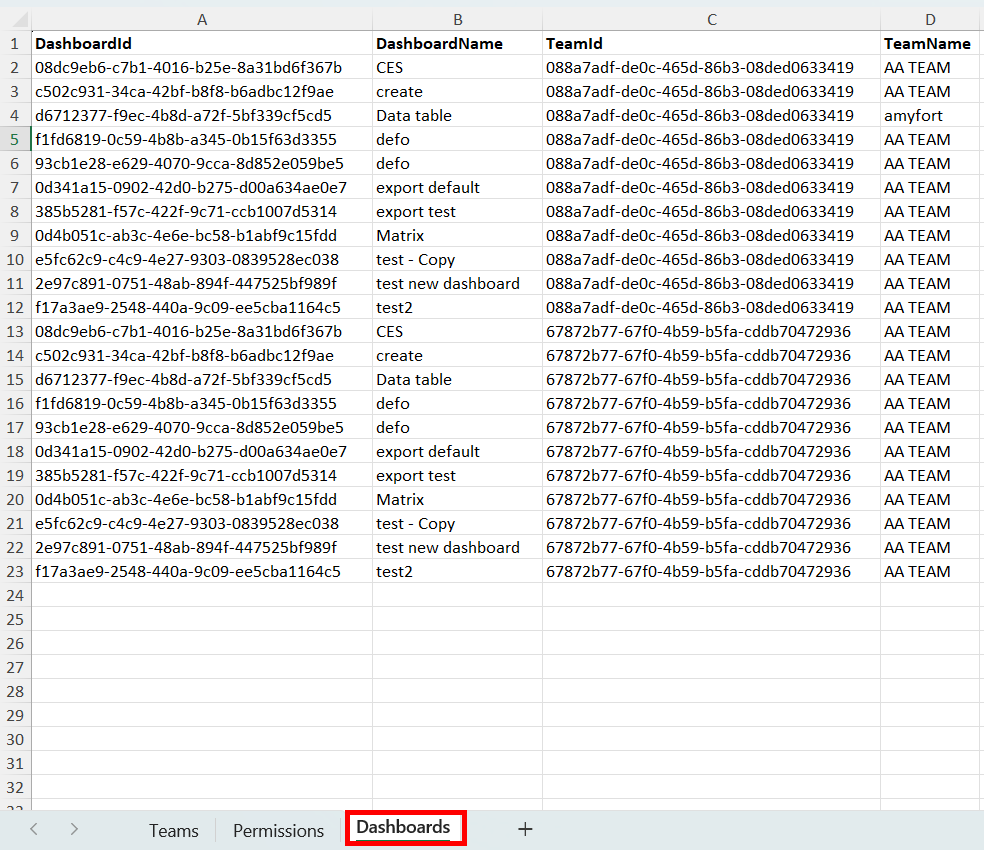
In a third tab, the dashboard permissions will appear.
CAUTION
Do not change the column headers or the file structure
b. Edit the file
NOTE
If you are unsure about any changes, we recommend making a backup copy of the original export before editing.
Open the file in Excel or any compatible spreadsheet application and make your changes.
A few things to keep in mind:
- Do not delete or rename the column headers. The upload process relies on exact column names to parse the data correctly.
- Leave the team ID column unchanged for any existing teams. This is how the platform identifies which rows correspond to existing teams versus new ones.
- To add a new team, leave the ID field empty and fill in all other required fields.
-
To remove a team, delete the row entirely. Note that removing a team will also remove any user assignments linked to it.
- You can add users to the new teams
TIP
You can nest newly created teams under other teams by assigning a parent team. Simply select the name of the existing team as the parent when creating a new one.
This approach makes it much easier to organize and structure new sections efficiently.
Dashboard permissions
Dashboard permissions decide who can see which dashboards in your environment. You can still manage these directly on each dashboard's settings, but for environments with many dashboards or many users, the Excel round-trip is now the fastest way to keep them aligned.
How it works
- From the Excel round-trip view, choose the Dashboard permissions scope when exporting.
- The exported file lists each dashboard and the teams (or users) it's currently shared with, along with their permission level.
- Edit the file:
- Add a row to grant access to a team or user that didn't have it before.
- Change a value to adjust the permission level for an existing team or user.
- Remove a row to revoke access.
- Upload the file. The preview shows every grant, change, and revocation before anything is applied.
- Confirm. The platform applies the full set of changes in one go.
c. Upload and preview changes
Return to the team overview page.
Click Import teams and select your edited file.
The platform will validate the file and display a preview of all pending changes before anything is applied.
The preview screen shows:
- Teams to be added (highlighted in green)
- Teams to be updated (highlighted in blue)
-
Teams to be removed (highlighted in red)
IMPORTANT
Review the changes carefully before proceeding.
d. Apply changes
Once you are satisfied with the preview, click Apply changes to confirm.
The update is all-or-nothing: either all changes are applied successfully, or none of them are. This prevents partial updates that could leave your team structure in an inconsistent state.
If the upload is successful, the team overview page will refresh to reflect the new structure.
4. Error handling
If the file contains errors, the upload will be rejected and a list of issues will be displayed. No changes will be applied until all errors are resolved.
Common errors include:
-
A required field is missing (e.g. team name left blank)
- A parent team referenced in the file does not exist in the platform
- A user assigned to a team does not exist in the platform
-
Duplicate team names within the same level of the hierarchy
Fix the issues in the file and re-upload.
5. Good to know
- Only admin users can access the bulk management workflow.
- The feature is accessible from the team overview page: there is no separate menu entry.
-
Touchpoint links are not included in the export file. If you need to update touchpoint-team mappings, you can do so separately.
If you need help with this feature, contact your Customer Success Manager or email support@hellocustomer.com or your CSM.