
You can now display score questions as stars instead of numeric buttons. The participant taps the number of stars that match their experience; the platform records the same numeric score it always did, but the question feels lighter and reads especially well on mobile.
This is a visualization option, not a new question type. Every existing report, dashboard widget, alert, and export continues to work exactly as before, only the way the question is displayed to the participant changes.
IN THIS ARTICLE
1. When to use stars
Stars work especially well for:
- Transactional surveys: Rate your delivery / your visit / your call.
- B2C audiences: instantly recognizable from app stores, hotel bookings, and review sites.
- Mobile-first surveys: stars are large, easy to tap, and read well on small screens.
2. Where to configure it
Star score visualization is configured per question type in the Touchpoint Wizard:
- Open the touchpoint and go to the Survey Design tab.
- Find the new Score Display accordion.
- For the score question type(s) you want to render as stars, switch the display to Stars.
- Choose your style and colors (see Configuration options below).
- Save the touchpoint.
The setting applies per question type. For example, you can show CSAT-style score questions as stars while keeping NPS questions as numeric buttons within the same survey.
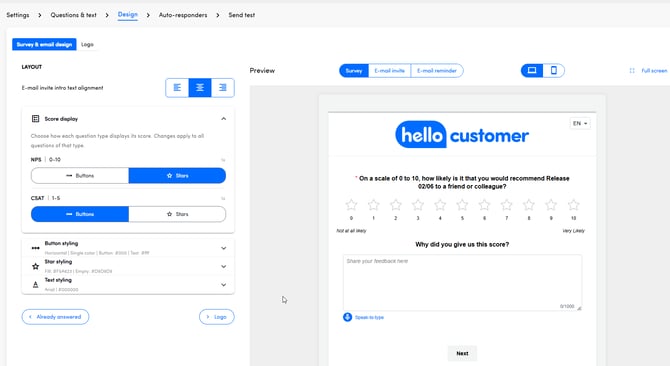
3. Configuration options
In the Score Display accordion, you control:
- Star style: choose outlined stars (hollow, filled in as the participant rates) or filled stars (solid stars in two colors).
- Selected color: the color of stars the participant has chosen.
- Unselected color: the color of the remaining stars in the row.
- The number of stars equals the score question's existing range (e.g. a 1–5 score becomes 5 stars, a 1–10 score becomes 10 stars). Nothing else in the question's configuration changes.
Brand colors can be reused so the stars match the rest of your survey styling.
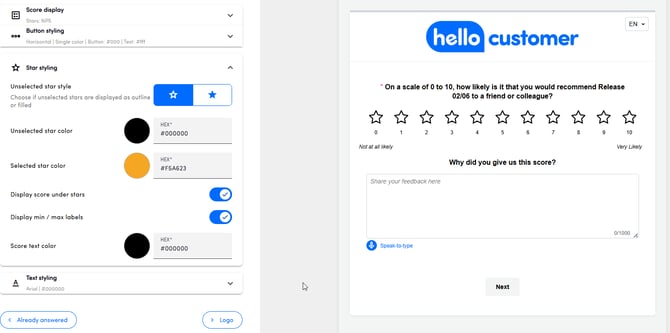
4. How stars render
Stars render reliably across the channels you use:
- In the survey itself : desktop, tablet, and mobile. The stars are large enough to tap comfortably and follow the language direction (LTR / RTL) of the survey.
- In e-mail invitations with the first question embedded: including classic Outlook. The platform falls back to a static, branded star rendering for clients that strip dynamic content, so the question still looks right.
IMPORTANT
In e-mail rendering, only the filled vs. outlined choice is reflected. The selected and unselected colors you configured are not applied. Stars render in the platform's default neutral colors. This is to keep the rendering reliable across the wide variety of e-mail clients, which strip or mangle inline colour styling on embedded SVGs. The colours you configured continue to apply in the survey itself (when the participant clicks through to web or mobile).
5. Dashboards, analysis, and alerts
Because stars are only a visualization, every existing report and view continues to work unchanged:
- Average score: the same headline metric as before (e.g. 4.2 / 5).
- Distribution: how many participants picked each value.
- Repartition widgets: unaffected.
- Custom Metrics built on top of the score: unaffected.
- Alerts: alert rules tied to the score's metric continue to fire the same way.
6. Frequently asked questions
Is this a new question type?
No. It's a new way to display an existing score question. The underlying data is identical.
Can I switch a live touchpoint to stars?
Yes. Take the touchpoint offline if your environment requires that for survey design changes, make the switch, save, and bring it back online.
Can I use stars only on some questions in a survey?
Yes. The setting is per question type. You can show CSAT questions as stars and keep NPS as numeric buttons.
Do half-stars work?
No. Every rating is a whole number, matching the underlying score range.
Will participants see different things on different devices?
No. The same star visualization renders on desktop, mobile, and in e-mail.