
The Hello Customer MCP connector lets you bring your Hello Customer data into the AI tools you already use like Claude, GitHub Copilot, and other MCP-compatible clients, so you can ask questions about your customer feedback in the same place you ask everything else. It's the same insights you'd get from Ask Isaac inside Hello Customer, but available wherever you do your thinking.
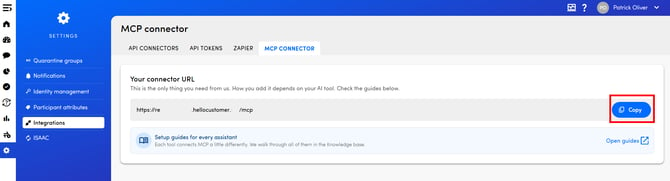
If you are an admin user of the platform, you can find the MCP connector section in the platform by navigating to Settings > Integrations > MCP connector. If you're a regular user instead, you just need to click on your user name (top right corner of the platform) and a panel will appear with the MCP connector tab as one of the options.

Here you can find the Hello Customer MCP URL to which you can connect using the different AI tools.
IN THIS ARTICLE
1. What is MCP?
MCP stands for Model Context Protocol. It's an open standard, originally proposed by Anthropic and now adopted across the AI ecosystem , for connecting AI assistants to external data sources and tools.
Think of it as a common plug. Before MCP, every AI tool needed a bespoke integration with every data source: a custom Salesforce plugin for Claude, a different Salesforce plugin for Copilot, another one for Cursor, and so on. MCP replaces that with a single standard: any data source that exposes itself as an MCP server can be used by any AI tool that speaks MCP, without anyone having to write a custom integration for every pairing.
In practical terms, the model your AI tool runs on can:
- Read information from the MCP server (for example, the score of an NPS touchpoint last month).
- Call tools the MCP server exposes (for example, "summarise the top categories in this touchpoint over the past week").
- Combine that information with everything else the AI tool already has access to, so the answer it gives you is grounded in your real data, not a generic web search.
2. What does the Hello Customer MCP connector do?
The Hello Customer MCP connector is the MCP server we provide. When you connect it to your AI tool, the tool gains access to a curated set of capabilities backed by your Hello Customer environment, including:
- Read your touchpoints and metrics. NPS, CSAT, CES scores; trend data; per-team breakdowns; period comparisons.
- Search and read conversations. Open-text verbatims, Vera summaries on customer interaction touchpoints.
- Query Isaac's analysis. Top categories, sentiment, key drivers.
- Run prompts against your data. Ask questions the same way you would in Ask Isaac.
Everything is scoped to the permissions of the user account that connects. The connector never returns data a user wouldn't be allowed to see in the Hello Customer platform.
3. What can you use it for?
The headline value of MCP isn't just Hello Customer data in another window , it's the ability to combine that data with everything else your AI tool can already see.
A few examples:
- Hello Customer + CRM. "For each of our top 20 accounts in Salesforce by ARR, pull the latest CSAT score from Hello Customer and flag any account where CSAT dropped more than 10 points in the last quarter." The AI tool reads both sources and writes the answer.
- Hello Customer + ticketing. "Look at the open-text feedback from this week and check whether the top complaint category is also showing up as a tag spike on our Zendesk tickets."
- Hello Customer + your roadmap. "Take the top three Recommendations from the Customer Service dashboard this month and check our Jira backlog: anything already covered, anything missing?"
- Hello Customer + a document you're writing. Drop the connector into the same chat you're using to draft your QBR deck. Ask for the headline numbers, the most representative verbatims, and a one-line summary per region, all inserted into the document you're already working on.
- Hello Customer + email / Slack. "Summarise this week's feedback shifts and draft a Slack message for the customer experience channel."
The pattern is the same in every case: the AI tool brings the analysis and the writing; the MCP connector brings the trustworthy customer-feedback data; your expertise decides what's worth asking.
4. Before you start
A few things to know before you connect:
- You'll need an AI tool that supports MCP (Claude Desktop, Claude in the browser, GitHub Copilot in a compatible IDE, Cursor, and others: see Connect from your AI tool).
- Permissions follow your Hello Customer account. You connect with your own credentials, and the MCP connector will only ever see and return data you're allowed to see in the platform.
- Your data stays governed. The AI tool reads from Hello Customer when needed; it doesn't replicate your data into a third-party store. We don't use your data to train external models.
5. Connect from your AI tool
The exact steps depend on the AI tool you use. The sections below cover the main supported clients. Pick the one that matches yours.
5a. Claude
Claude has the most direct setup of any client: the Hello Customer connector is added once and is then available in any conversation.
On Pro, Max, or a personal plan
- Open Claude (browser, Desktop, or mobile) and go to Settings → Connectors (on some plans this sits under Customize → Connectors).
- Click the "+" next to Connectors and choose Add custom connector.
- Give it a Name (for example, Hello Customer) and enter the URL of your tenant's MCP server: https://[your-tenant].hellocustomer.app/mcp. Leave the Advanced settings (OAuth Client ID / Secret) empty: the connector authenticates automatically.
- Click Add. A login screen appears: sign in with your Hello Customer credentials and authorize the connection.
- In any chat, open the "+" menu at the bottom-left, choose Connectors, and toggle Hello Customer on. From then on, Claude calls the connector on its own whenever your question fits, for example "What's the NPS trend for our onboarding touchpoint this quarter?"
On Team or Enterprise
An Owner adds the connector once for the organisation via Organization settings → Connectors → Add custom connector, using the same URL. After that, each member connects individually under Settings → Connectors with their own Hello Customer login, so everyone sees only the data their account is permitted to see.
A couple of things worth knowing: the connection is made from Anthropic's cloud rather than your own machine, so your MCP server simply needs to be reachable over the public internet (it is, by default). On the Free plan you're limited to a single custom connector.
5b. Microsoft Copilot
Copilot works a little differently from Claude. An MCP connector can't be added directly inside Copilot chat: the bridge always runs through an agent built in Copilot Studio, which you then publish so it appears in Copilot. Once that's done, using it feels like chatting with Copilot as normal. There are four stages: add the connector, attach it to an agent, publish, and use.
Stage 1. Add the Hello Customer connector in Copilot Studio
- In Copilot Studio, go to Tools → New tool → Model Context Protocol.
- For Server URL, enter your tenant's MCP server: https://[your-tenant].hellocustomer.app/mcp
- Set Authentication to OAuth 2.0, choose Type: Dynamic discovery, and click Create.
Stage 2. Attach the connector to an agent
- Create a new agent (or open an existing one) and, via Tools → Add tool, attach the Hello Customer connector.
- Turn on generative orchestration in the agent settings. This step matters: without it, the orchestrator won't pick up the connector's tools automatically.
- In the agent's Test pane, try a prompt such as "Give me the touchpoint list from Hello Customer." You'll be redirected to the Connection Manager to sign in once; after that the agent can call the connector freely.
For internal testing or a quick demo, the Test pane on its own is enough: it returns the same results and, as a bonus, shows the tool traces, so you can see exactly which call was made, with which parameters, and what came back. You only need to publish (below) for everyday use.
Stage 3. Publish so the agent appears in Copilot
- With the agent open, go to Channels in the left-hand navigation.
- Select Teams and Microsoft 365 Copilot → Add channel, leaving "Make agent available in Microsoft 365 Copilot" ticked.
- Click Publish at the top. The first publish takes a few minutes, and you have to publish at least once before the agent is usable anywhere.
- Using the "…" → Share menu, give specific users or groups the Viewer role; otherwise the agent is only visible to you. A wider, organization-level rollout needs an extra approval step from your tenant admin in the Microsoft 365 / Teams Admin Center, but that isn't required for your own use or testing.
Stage 4 . Use it in Copilot
- Open Microsoft 365 Copilot (http://copilot.cloud.microsoft/, or through Teams). The agent appears in the Agents section of the left rail; open it and pin it if you like. If it isn't there, choose Get agents, search by name, and add it.
- You can either open the agent and chat in it directly, or @mention it from ordinary Copilot chat, for example "@HelloCustomer give me the Q1 NPS evolution and put it in an email to the team." The @mention route is handy when you want to combine Hello Customer insights with other Microsoft 365 context.
- The first time, you'll go through the Connection Manager login once more; after that it's remembered.
Who needs admin rights?
Building the agent and adding the Hello Customer connector doesn't require tenant or organization admin. Any user with Copilot Studio authoring access can create the MCP tool, attach it to an agent, and test it in the Test pane, that's the full "for your own use and testing" path, no admin involved.
Admin rights come in at three specific points:
- Allowing Studio agents in the Copilot channel. A tenant admin controls whether Copilot Studio agents can surface in Microsoft 365 Copilot at all. This is on by default, but is sometimes switched off in governed tenants and if it's off, even a correctly published agent won't appear. Managed in the Microsoft 365 Admin Center under the Copilot/agent settings.
- Organisation-wide rollout. You can share the agent with specific users or groups (Viewer role) yourself, via the "…" → Share menu. But making it available to everyone in the tenant needs an admin approval step in the Microsoft 365 / Teams Admin Center.
- Pay-as-you-go billing. Users without a full Microsoft 365 Copilot license can still reach the agent in Copilot Chat, but only if the tenant has pay-as-you-go billing enabled via Copilot Studio, and enabling that is itself an admin action.
In short: any individual can add the connector and use it themselves, provided they have Studio access and the tenant hasn't blocked Studio agents from the Copilot channel. Admin involvement is needed to roll it out to the whole organisation, or to enable consumption billing for users without a Copilot licence.
5c. ChatGPT
To connect the Hello Customer MCP server to ChatGPT:
- Open ChatGPT and go to Settings → Connectors (or Tools/Plug-ins, depending on your version).
- Add a new MCP server.
- Enter the Hello Customer MCP server details provided by your administrator.
- During the authentication setup, open the Advanced OAuth settings and make sure DCR (Dynamic Client Registration) is selected. This is required for the connection to work correctly.
- Complete the OAuth sign-in flow and authorize ChatGPT to access your Hello Customer account.
Once the connection is established, you can ask ChatGPT questions about your Hello Customer data, such as customer feedback, touchpoints, surveys, metrics, and trends.
5d. Other MCP clients
Any tool that speaks MCP can connect to the same server. Whatever the client, you'll need just two things: your tenant's server URL, https://[your-tenant].hellocustomer.app/mcp, and your Hello Customer login for the OAuth step. The connector uses the modern streamable HTTP transport.
Cursor, and editor-based clients (VS Code, Claude Code, and similar). These tools read MCP servers from a small JSON config (often mcp.json or the tool's settings file). Add an entry pointing at your server URL using the httpUrl (or url) field, then start the login flow when the tool prompts you. For example:
json
{   "mcpServers":
{     "hello-customer":
{       "httpUrl": "https://[your-tenant].hellocustomer.app/mcp"     }
Gemini. Support depends on which Gemini you use. The consumer Gemini app at http://gemini.google.com/ (web and mobile) does not currently let you add custom MCP servers, so the Hello Customer connector can't be plugged into the personal Gemini app today. Custom MCP connections are available through Gemini Enterprise in the Google Cloud console (added as a custom MCP server data store, with an OAuth client your admin registers and the same server URL) and through the Gemini CLI (configured in ~/.gemini/settings.json). Both follow the same pattern as above: point the client at your server URL and complete the OAuth login.
Anything else. The rule of thumb for any MCP-capable client is identical: find where it adds a remote or custom MCP server, paste in https://[your-tenant].hellocustomer.app/mcp, and authenticate with your Hello Customer credentials when prompted. If a client asks for a transport type, choose streamable HTTP rather than the older SSE.
If your tool isn't listed here and you're not sure how to add a remote MCP server to it, your Customer Success Manager can point you in the right direction.
6 Frequently asked questions
Why is the MCP connector is not available from the start?
We're rolling out gradually so we can monitor performance, gather feedback, and tune the connector against real-world use. Once stable, it will move to general availability.
Does the connector replace Ask Isaac?
No. Ask Isaac stays the right tool when you want to ask questions inside Hello Customer, in front of dashboards and conversations. The MCP connector is the right tool when you want Hello Customer data inside another AI tool, alongside other data sources.
What data does the connector expose?
Touchpoints, metrics, trends, conversations and verbatims, Isaac categories and sentiment, and the same kind of analytical capabilities Ask Isaac provides. Specific tool / endpoint names are documented in the per-client connection guides above.
Will my data leave Hello Customer?
Reads happen on demand: when you (or your AI tool) ask a question, the connector returns the relevant slice. Nothing is replicated into a third-party store, and your data is never used to train external models.
Can I scope the connection to a specific team?
The connector inherits the permissions of the user account that connects. If your Hello Customer account is scoped to a specific team, the MCP connector will only see that team's data.
What if I disconnect my AI tool?
Disconnecting from the AI tool's side stops further requests immediately. You can also revoke the connection from inside Hello Customer.
Is the connector available in every language?
The data Hello Customer returns is language-agnostic. The AI tool will reply in whatever language you're chatting in.
Does it cost extra?
The connector itself doesn't change your contract. The AI tool you connect from may have its own pricing. That's between you and the AI tool's provider.