
Hello Customer now supports Custom Metrics, allowing you to create highly personalized survey metrics tailored to your business needs. These questions extend beyond standard metrics like NPS, CES, and CSAT by offering full flexibility in naming, scoring, and feedback collection.
This functionality is only available if you are using our latest version of ISAAC
IN THIS ARTICLE
3. Adding a Custom Metric to your survey
5. Duplicating a Custom Metric
7. Convert an NPS, CSAT or CES question into a Custom Metric
1. What are Custom Metrics?
Custom Metrics let you fully personalize your survey metrics:
-
Define a custom name for the custom metric.
-
Set a score range from 0 up to 10 (or smaller ranges if desired). The numbers are fully customizable.
-
Configure positive, neutral, and negative score groups with custom thresholds.
-
Enable optional open-text feedback for richer insights.
- You can use this custom metric more than once in your survey and in all your touchpoints.
-
Use them in place of traditional metrics - NPS, CSAT and CES - or combine them, keeping reporting seamless.
2. Create a new Custom Metric
Go to the Questions & text section of your touchpoint (it can be newly created , or an already existing one.
The "+ Create a custom metric" option will appear" when adding a new question to the touchpoint. You just need to click here in order to start configuring your new Custom Metric:
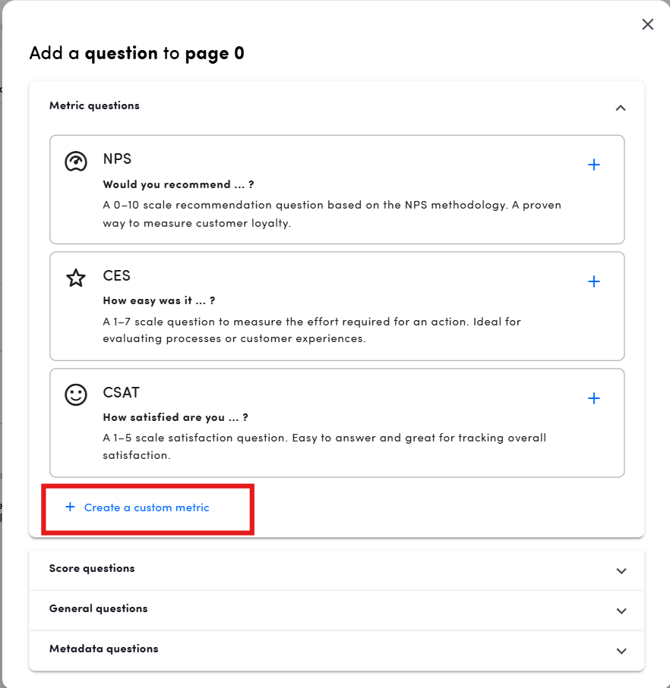
A new dialogue will open with the different options to customize the custom metric:
Metric details
Name: This is a generic name that helps identifying the question in the platform. For example: you can call it 1-8 question so you can identify it when adding it to your surveys.
Description: Here you can explain the purpose of the custom metric.

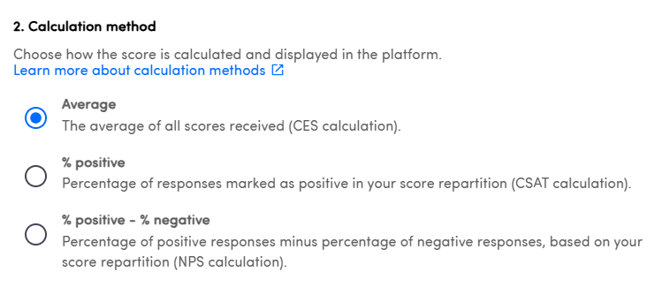
Calculation Method
Select how you want your metric to be calculated.
A. Average
B. % of positive answers
C. % of positive answers - % of negative answers
Score
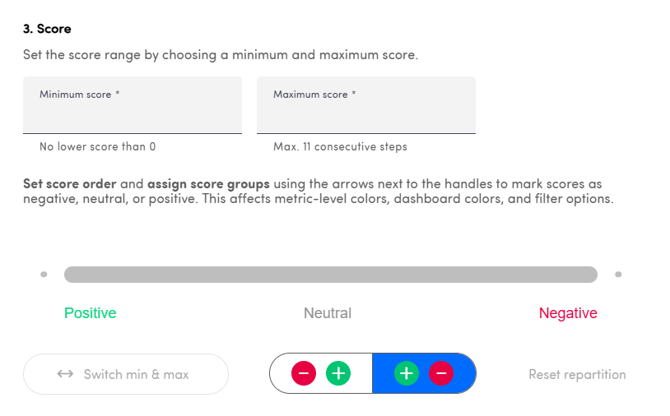
Set the range by selecting a numeric min and max score. Keep in mind:
-
The scores have to be positive numbers
-
The minimum score has to be smaller than the maximum score
- Between the min and max scores cannot be more than 11 steps (0-10: 100-110...). But there can be less.
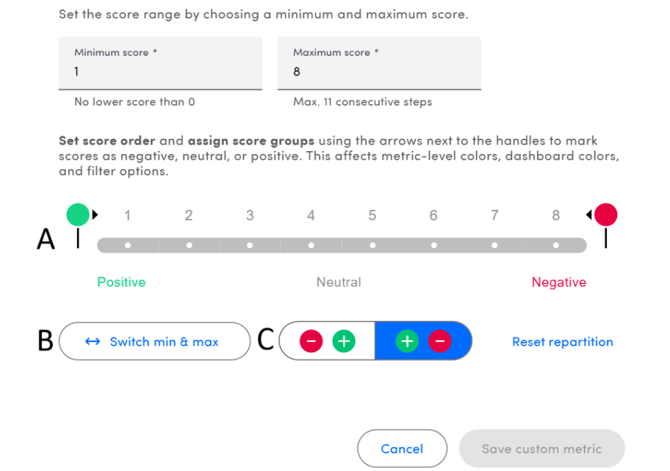
Once the min and max scores are selected, a new section can be configured where you can:
-
A: Define the score groups (positive, negative and neutral) by moving the lollipops along the score range
-
B: Select the polarity of the custom metric (if it goes from + to - or from + to -)
-
C: If the range goes from min to max or from max to min
Last but not least, you can (optionally) configure group names in all user languages.
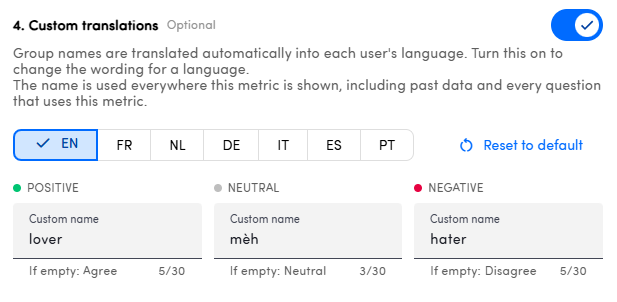
If you do not define custom translations, the labels of the different groups fall back to the defaults. Those defaults depend on your calculation method.
| Calculation method | Positive | Neutral | Negative |
| Average | Agree | Neutral | Disagree |
| % positive | Satisfied | Neutral | Unsatisfid |
| % positive - % negative | Promoters | Passives | Detractors |
Once selected, you can save your custom metric which can be confirmed when the following dialogue appears:
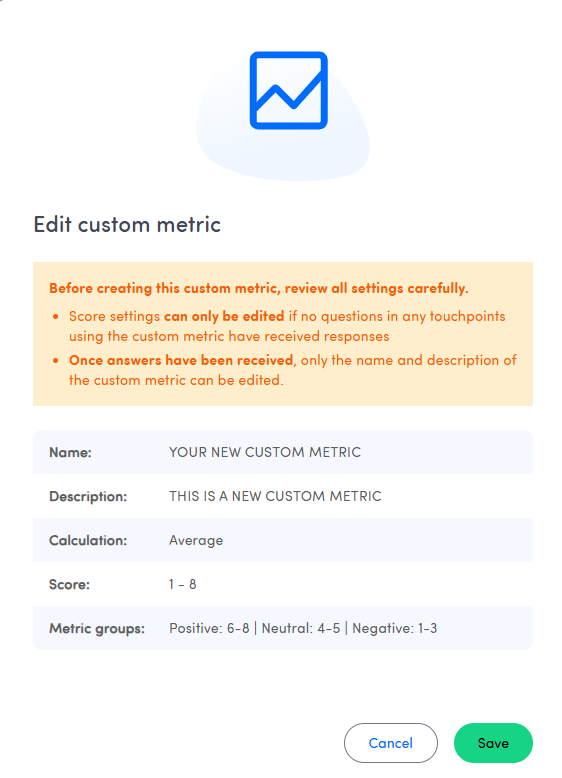
3. Adding a Custom Metric to your survey
Once created, you can add the custom metric to your survey. It works as any other question. You can see:
-
The name of the custom metric
-
The calculation method

You just need to press the + icon and a dialogue will appear for you to configure the question.
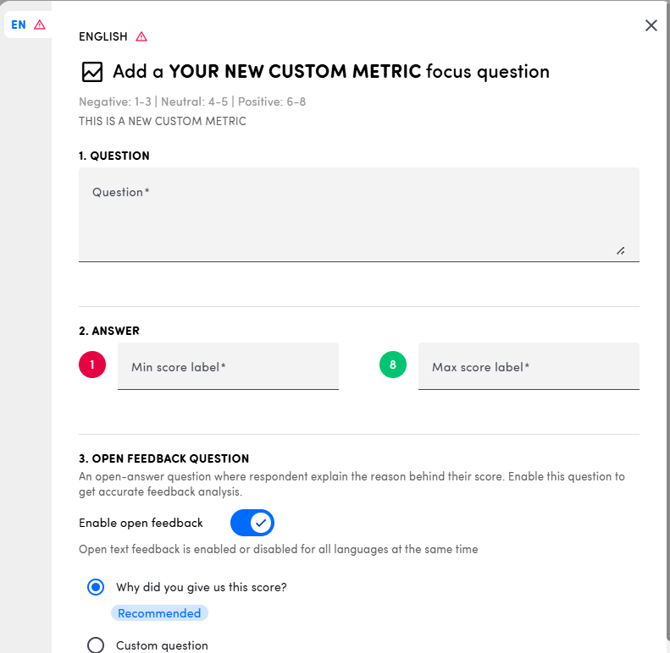
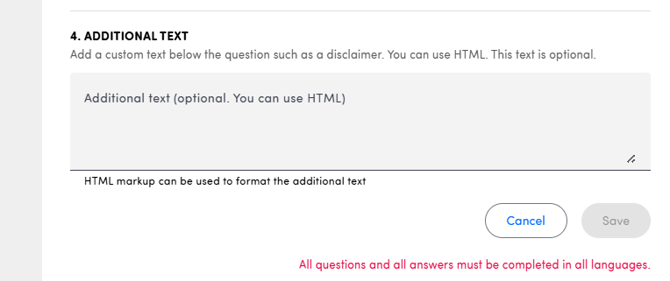
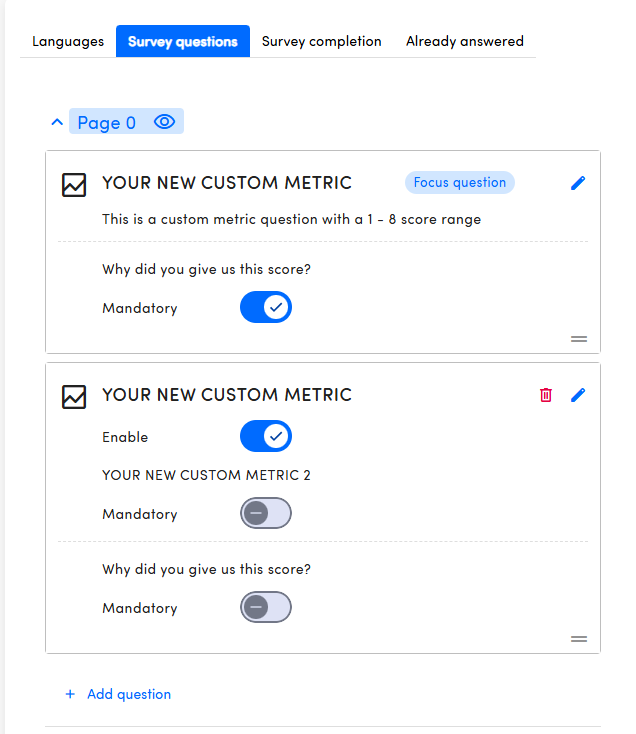
Once configured and saved, the question will appear on the survey preview.

TIP
You can add as many of the same custom metric to the survey as you want! But only the first one will act as the focus question and is the one that will appear on the homepage.
4. Editing a Custom Metric
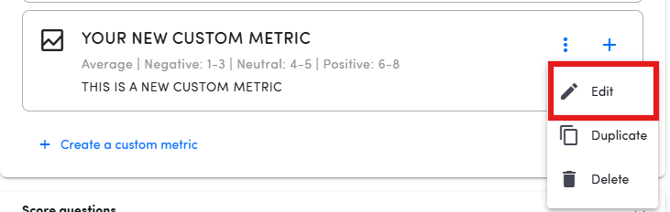
Custom metrics can be edited by clicking on the three dots right next to the + icon in the question selection dialogue and selecting Edit.

You can edit:
-
The name
-
The description
-
Score range *
-
Calculation method *
-
Score groups *
-
Custom translations
* IMPORTANT
The score section (score range, score groups and the calculation method) can only be edited if there are no answers for the custom metric in any touchpoint
5. Duplicating a Custom Metric
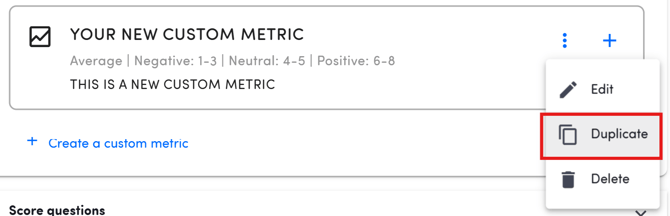
Custom metrics can be duplicated by clicking on the three dots right next to the + icon in the question selection dialogue and selecting Duplicate.
A new modal dialogue will appear in order for you to configure the new duplicate. This is because there cannot be two custom metrics with the exact same configuration for the score section (i.e. same score range, score groups and calculation method)
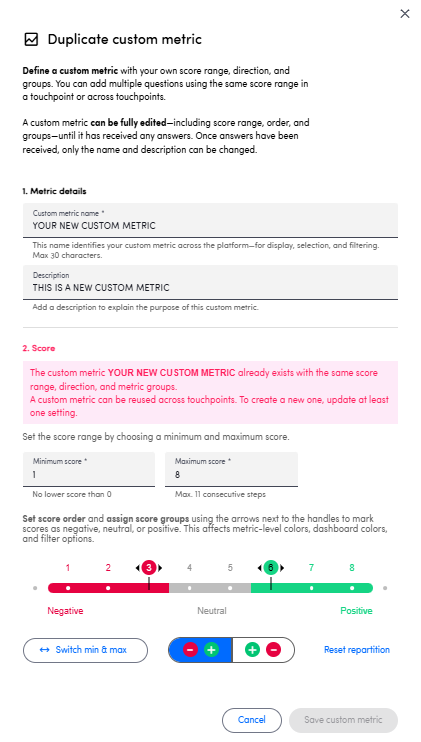
Once configured, don't forget to save the duplicate question.
6. Deleting a Custom Metric
Custom metrics can be deleted by clicking on the three dots right next to the + icon in the question selection dialogue and selecting Delete.
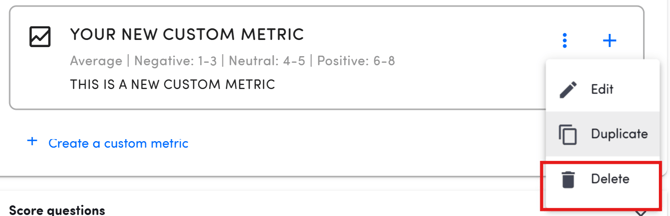
A new modal dialogue will appear and you can confirm whether you would like to delete the custom metric or cancel the deletion.
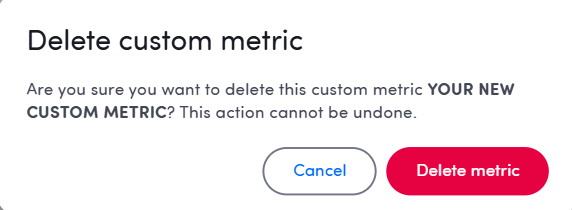
IMPORTANT
Custom metrics can only be deleted when there are no answers for them yet on the platform. This includes answers present in any touchpoint where the custom metric is added.
7. Convert an NPS, CSAT or CES question into a Custom Metric
You can change a standard metric question (NPS, CSAT or CES) into a custom metric with the same score range. This can be useful if you, for example, want to change the score groups or calculation method of your current questions.
The question itself stays the same, so all historical answers stay attached to it. Dashboards, alert rules, conversations and Analysis all follow the converted question.
- To do this, go to Edit question > Change metric, choose one of the custom metrics with the same range, and confirm. If the custom metric you want to convert your standard metric to doesn't exist yet, create it first.
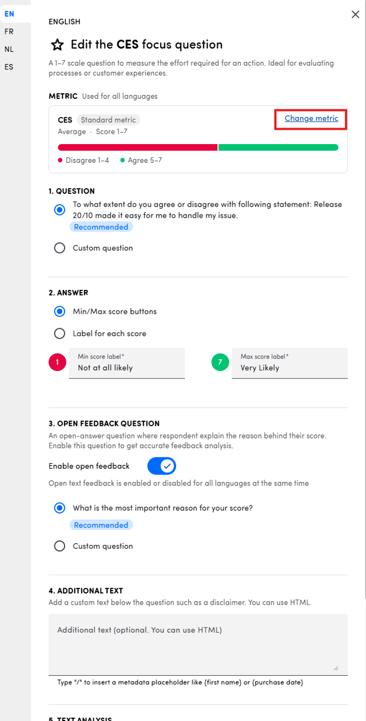
- The conversion only goes one way. You can’t convert back, convert from one custom metric to another, or change the score range.
- Historical results are recalculated overnight, so dashboards will look right the day after you convert. Therefore, we recommend converting at the end of your working day.