
When you close the loop with a participant, you don't have to start from a blank page. Set up reply templates per score range in the touchpoint, and your team picks the right one in Conversations. Or let the platform generate a reply with AI, based on the score, the question and what the customer actually wrote — within the guidelines you define.
Both work alongside the normal reply function: whatever you start from, you can edit the text before it goes out.
IMPORTANT
Replying from Conversations must be activated for your environment before templates or AI replies are available. Contact your Customer Success Manager for more information.
IN THIS ARTICLE
- Before you start
- Set up reply templates
- Set up the AI reply guidelines
- Reply in Conversations
- Google review touchpoints
- Good to know
1. Before you start
Templates and AI-generated replies are part of the reply functionality, which is activated per environment, and available for Google Review, E-mail, Ask Anywhere and Website touchpoints.
Two more conditions apply:
- Your survey needs a metric question first. Templates are grouped by the score on the focus question, so the Reply templates section only appears in touchpoints that start with a metric question (NPS, CSAT, CES or a custom metric). If you move a non-metric question to the first position, the section disappears.
- You need manage rights on conversations. Setting up templates and guidelines is done by administrators in the touchpoint settings. Using them in Conversations is possible for all administrators and users with manage permissions for conversations.
If you cannot find it this feature your environment, contact your Customer Success Manager or support@hellocustomer.com.
NOTE
For e-mail, Ask Anywhere and website touchpoints, replying also requires the participant's e-mail address to be known. This is always the case for e-mail touchpoints; for the other types the address needs to be sent as metadata or collected with a profile question.
2. Set up reply templates
A reply template is a piece of text you prepare in advance for a group of scores — a warm thank-you for promoters, an apology and a next step for detractors. Your colleagues then pick one in Conversations instead of writing the same message for the tenth time.
2.1. Where to find them
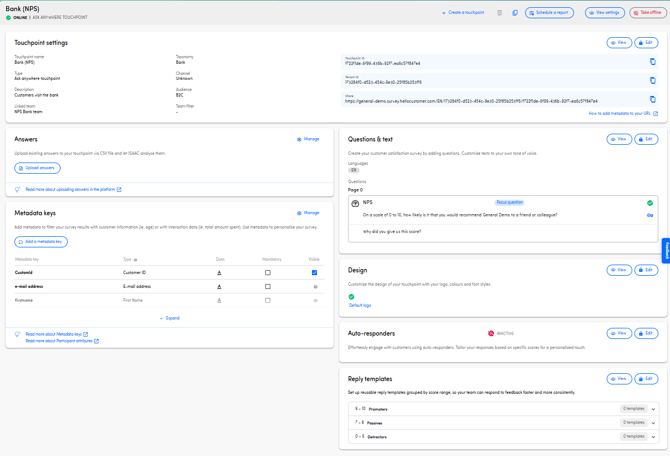
- Go to Touchpoint settings and open your touchpoint.
- Open the Reply templates tile.
You can also reach the section directly in the touchpoint wizard while you are building or editing the touchpoint.
2.2. How score ranges are grouped
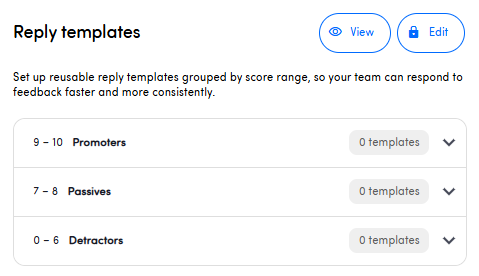
Templates are organised in three buckets — positive, neutral and negative — based on the score the participant gave on your focus question. The scores in each bucket depend on the metric:
| Metric | Score range | Negative | Neutral | Positive |
|---|---|---|---|---|
| NPS | 0–10 | 0–6 | 7–8 | 9–10 |
| CSAT | 1–5 | 1–2 | 3 | 4–5 |
| CES | 1–7 | 1–4 | — | 5–7 |
| Custom metric | your own range | Follows the range and the direction you configured for the question. A custom metric that runs from positive to negative groups its scores the other way round from one that runs from negative to positive. | ||
2.3. Write a template
- Choose the bucket the template belongs to.
- Give the template a recognisable name. This is what your colleagues see in the dropdown in Conversations, so “Detractor – delivery delay” beats “Template 3”.
- Write the message in the first language of your touchpoint. This is the base language, and it’s the only one you have to fill in.
- Optionally, write the name and message in your other touchpoint languages as well.
- Save. Any language you left empty is automatically machine-translated from the base language and marked as machine-translated until someone has reviewed it.
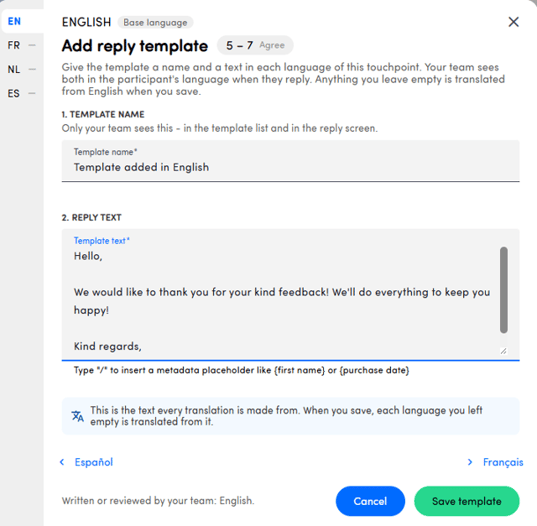
One template, every language. Each template has its own name and text for every touchpoint language. When a colleague applies the template in a conversation, the version in the participant’s language is used automatically. You don’t need a separate template per language.
TIP
Machine translations are a good starting point, but have a native speaker review them, especially for detractor replies, where tone matters most. Translations stay marked until they’ve been reviewed, so it’s easy to see which ones still need checking.
Personalise with metadata. Type / anywhere in the text to pick a placeholder from the list — the participant's first name, a metadata value, the team name. When a colleague applies the template in a conversation, the placeholder is replaced by that participant's own value.
TIP
Always insert placeholders with the / picker rather than typing them out. A placeholder that was typed by hand and contains a typo is not recognised, and the participant receives the raw text instead of their name. Read more about personalizing with metadata.
Write more than one template per bucket when the same score can have very different causes. A detractor who complains about delivery needs a different message from one who complains about staff, and the person replying can pick whichever fits.
3. Set up the AI reply guidelines
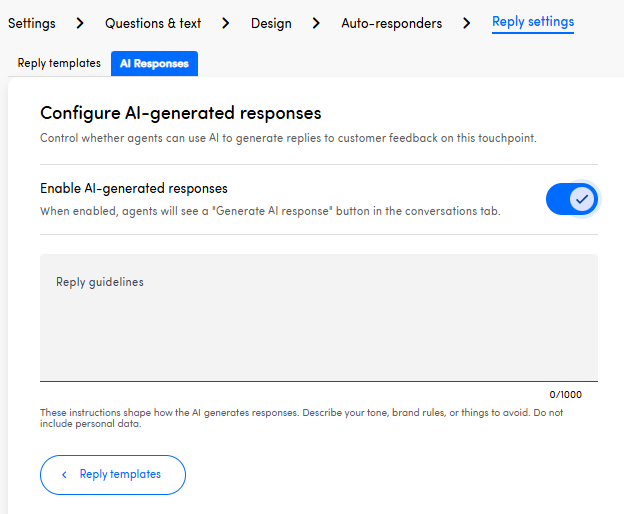
AI-generated replies are written for one specific conversation, at the moment your colleague asks for one. First, you choose whether replies can be generated with AI or not. If they can, you can then set up some configuration in advance. What you configure in advance is not the text itself, but the house style the AI has to follow.
- Go to Touchpoint settings and open your touchpoint.
- Open Reply settings.
- Switch on AI-generated replies and set the guidelines below.
| Guideline | What it does |
|---|---|
| Tone | Choose formal for professional and polite replies, or familiar for friendly and conversational ones. Match this to how you address customers everywhere else — a bank and a festival do not sound the same. |
| Length | The maximum length of the generated reply. Shorter forces the AI to get to the point; longer gives it room to acknowledge the feedback and explain a next step. |
| Custom instructions | Free text for anything the AI should always do or never do. For example: always sign off with the team name, never promise a refund, never mention competitors, always point unhappy customers to the service desk. |
What the AI knows about the conversation
When a reply is generated, the AI receives:
- the survey question the participant answered;
- the score they gave;
- their open text comment;
- your guidelines — tone, length and custom instructions;
- a matching reply template, if you have one for that score range, used as a style reference.
That last point is worth knowing: templates and AI replies are not two separate features competing with each other. If you have written good templates, the generated replies start sounding like them.
NOTE
The AI writes a draft. Nothing is sent automatically — a colleague always reads it, edits it if needed, and presses send. If you want messages that go out without anyone looking at them, use auto-responders instead; those are a different feature, triggered by the score and sent 30 minutes after the survey is submitted.
4. Reply in Conversations
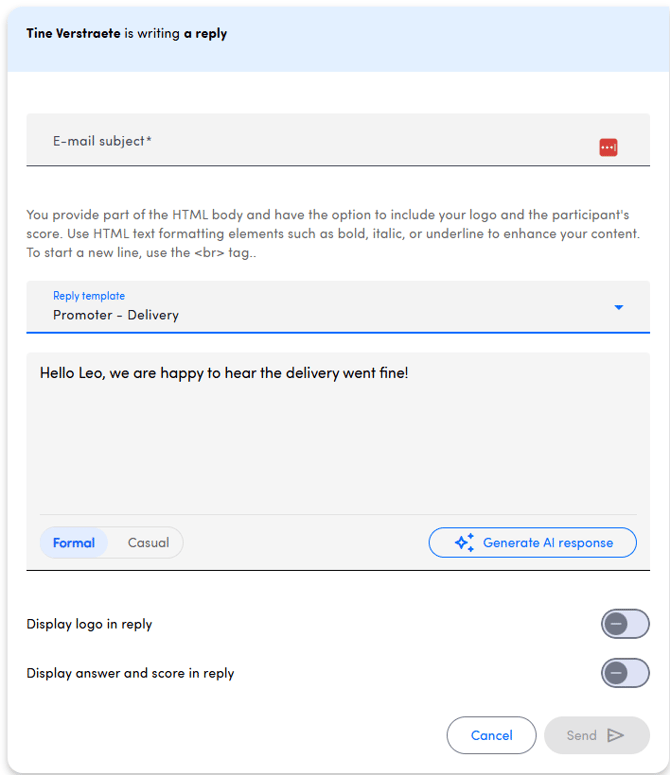
Open a conversation in the detailed view and click Reply, exactly as you would for a reply you write yourself. You then have two shortcuts.
4.1. Start from a template
- In the reply window, open the template dropdown.
- The templates that match this participant's score are suggested first.
- Pick one. The text is loaded into the message field, with metadata placeholders already resolved to this participant's values.
- Adjust the text where you need to, then send.
4.2. Generate a reply with AI
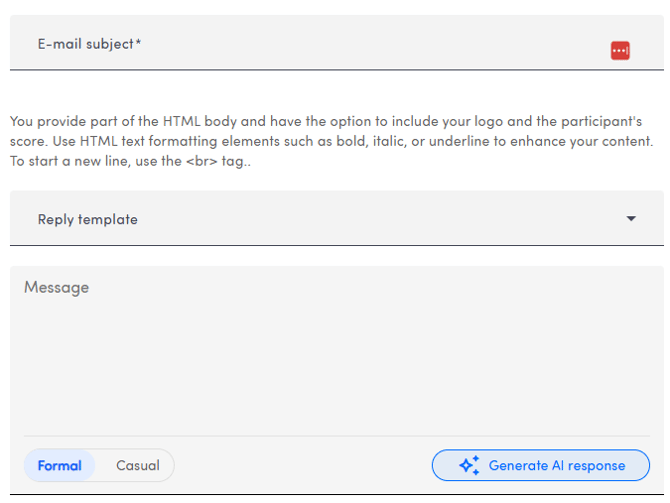
- In the reply window, click generate with AI.
- Read the draft. It is written for this specific comment, not a generic thank-you.
- Edit anything you want to change — the draft is fully editable.
- Send.
IMPORTANT
Read the draft before you send it. The AI works from the feedback in front of it and does not know about the phone call your colleague had yesterday, the compensation your team agreed on, or the outage last week. You are the one closing the loop — the draft only saves you the typing.
Everything else about replying stays the same: the reply is sent from feedback@hellocustomer.email or your custom domain, you can send as many replies as you want, answers from the customer appear in the platform, and you can only reply to conversations that are less than one year old. See Conversations - Overview for the full reply flow.
5. Google review touchpoints
Templates and AI replies work the same way for Google reviews, with two differences.
The reviewer gets no e-mail. Your reply is published under the review on Google, through your Google Business Profile. There is no e-mail address involved and no message in an inbox.
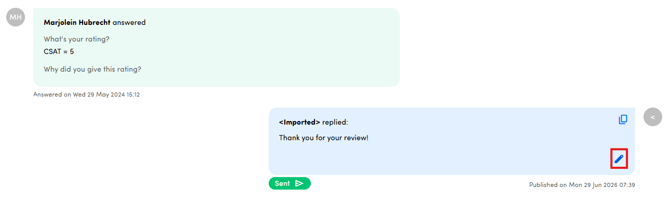
You can edit a reply after it has been sent. Unlike e-mail replies, a published Google reply can still be corrected:
- Open the conversation and find the sent reply.
- Click Edit response.
- The existing text loads into an editable field. Change what you need.
- Click Save changes — or Cancel to keep the original.
A few things to know about editing:
- You can edit a reply as many times as you need.
- The reviewer is not notified of the change.
- Google treats the edited reply as a new reply that overwrites the previous one — the old version is not kept on Google.
- The platform stores the time of the last change, so you can see when a reply was last edited.
6. Good to know
- Templates are per touchpoint. They are configured inside the touchpoint, so a template written for your after-sales survey does not appear in your delivery survey. Duplicating a touchpoint is the quickest way to reuse a set.
- Editing a template does not change replies already sent. A template is a starting point, not a link — once the text is in a reply, it is that reply's text.
- Templates and AI can be used together. Load a template, then generate; or generate, then paste in a standard paragraph. Nothing forces you to choose.
- A generated draft you don't send costs nothing but a moment. Generate, read, discard, generate again — nothing leaves the platform until you press send.